> ## Documentation Index
> Fetch the complete documentation index at: https://docs.pocketsflow.com/llms.txt
> Use this file to discover all available pages before exploring further.
# Images & embeds
> How to add images, videos, frames, and embedded HTML to Pocketsflow documentation pages.
This page shows how to add images, video, and other embedded elements to
documentation pages. It's a **contributor reference** for editing these docs.
## Adding an image
### Markdown syntax
The simplest way — good for inline content:
```md theme={null}

```
Store local images under `apps/docs/images/` and reference them with an
absolute-from-root path (`/images/...`).
Local image files must be **under 5 MB**. For larger assets, host them on a
CDN or object store (Cloudinary, S3, or the Pocketsflow CDN) and embed the
URL.
### HTML for more control
Use an `` tag when you need sizing, rounded corners, or other attributes:
```html theme={null}
```
### Wrap images in a Frame
Prefer `` for screenshots and diagrams — it adds consistent padding, a
border, and an optional caption:
```jsx theme={null}
```
## Accessibility & style
* **Always write descriptive `alt` text.** Say what the image shows, not "image".
* Match the flat Pocketsflow style: rounded corners are fine; avoid heavy drop
shadows.
* Use light-and-dark-friendly screenshots where possible, or provide both.
* Keep file names lowercase and hyphenated (`orders-list.png`).
## Light & dark variants
To swap an image by theme, provide both and let Mintlify pick, or use HTML
classes:
```html theme={null}
```
## Videos
Self-hosted video:
```html theme={null}
```
Embedded YouTube:
```html theme={null}
```
## Other embeds (iframes)
Any HTML iframe works — dashboards, forms, or interactive demos:
```html theme={null}
```
Mintlify supports HTML tags directly in MDX, so you can mix Markdown and HTML
freely for full flexibility.
## Related topics
* [Docs configuration](/essentials/settings)
* [Code blocks](/essentials/code)
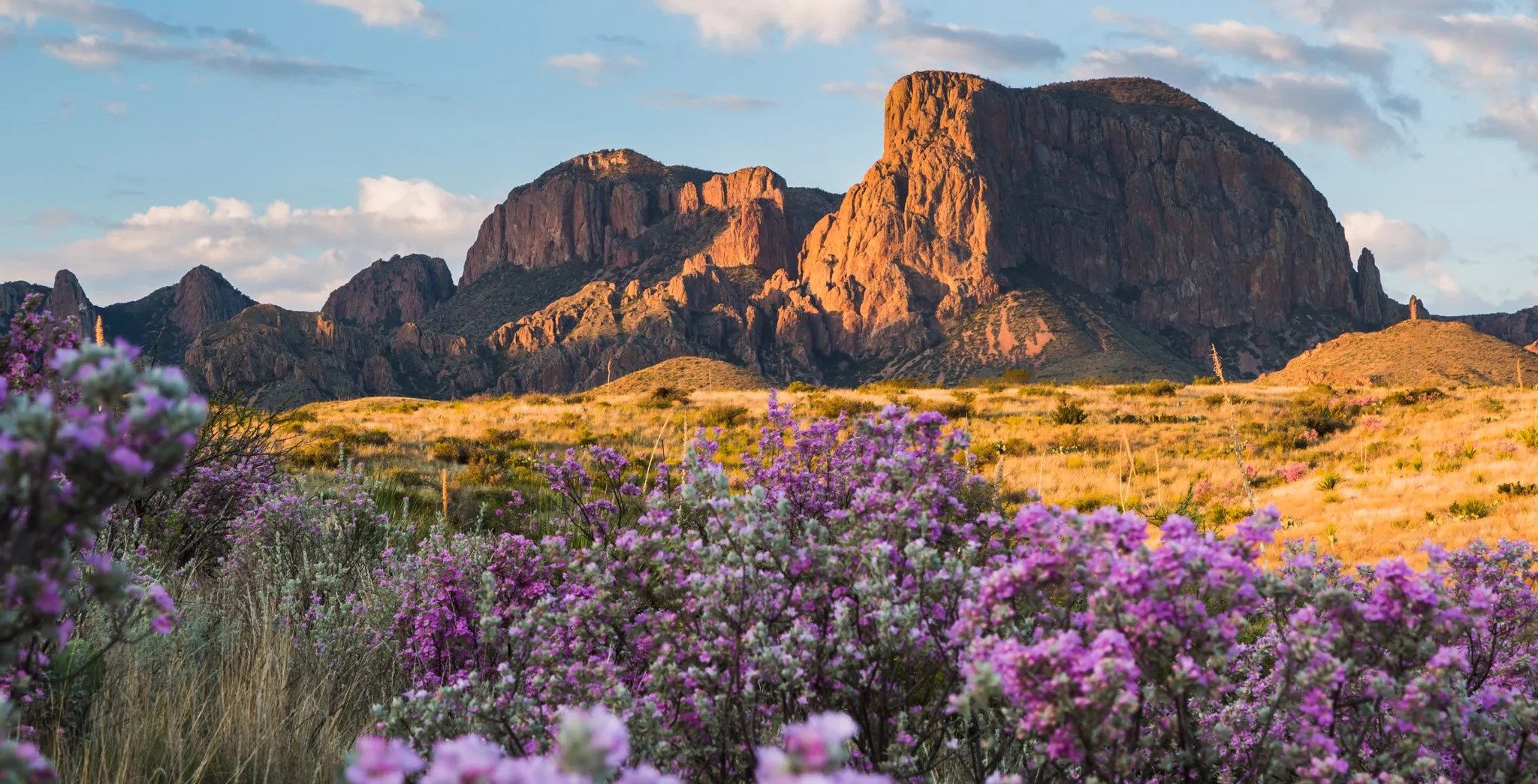 ## Adding an image
### Markdown syntax
The simplest way — good for inline content:
```md theme={null}

```
Store local images under `apps/docs/images/` and reference them with an
absolute-from-root path (`/images/...`).
## Adding an image
### Markdown syntax
The simplest way — good for inline content:
```md theme={null}

```
Store local images under `apps/docs/images/` and reference them with an
absolute-from-root path (`/images/...`).
 ```
### Wrap images in a Frame
Prefer `` for screenshots and diagrams — it adds consistent padding, a
border, and an optional caption:
```jsx theme={null}
```
### Wrap images in a Frame
Prefer `` for screenshots and diagrams — it adds consistent padding, a
border, and an optional caption:
```jsx theme={null}
 ```
```

 ```
## Videos
Self-hosted video:
```html theme={null}
```
Embedded YouTube:
```html theme={null}
```
## Other embeds (iframes)
Any HTML iframe works — dashboards, forms, or interactive demos:
```html theme={null}
```
```
## Videos
Self-hosted video:
```html theme={null}
```
Embedded YouTube:
```html theme={null}
```
## Other embeds (iframes)
Any HTML iframe works — dashboards, forms, or interactive demos:
```html theme={null}
```